
Ugh, nothing kills the vibe like a Fortnite matchmaking error, especially after a long day. I was all set for a Victory Royale with my squad, and bam, hit with that dreaded 'Matchmaking error #1.' You know the feeling, right? The game just won't connect, and that vague message is about as helpful as a screen door on a submarine. After some serious digging and trial-and-error, I've put together this 2026 guide to crush this error for good. Let's get you back in the fight! 🎮
First things first, let's understand this digital gremlin. This error pops up with the message: "Matchmaking error (#1): Weird. We couldn't connect to the match." It's basically Fortnite's way of saying, "Houston, we have a connection problem." The core culprits are almost always server-side maintenance or a local network hiccup on your end. Don't panic; we can fix this!
🧐 Step 1: The Instant Check - Are the Servers Down?
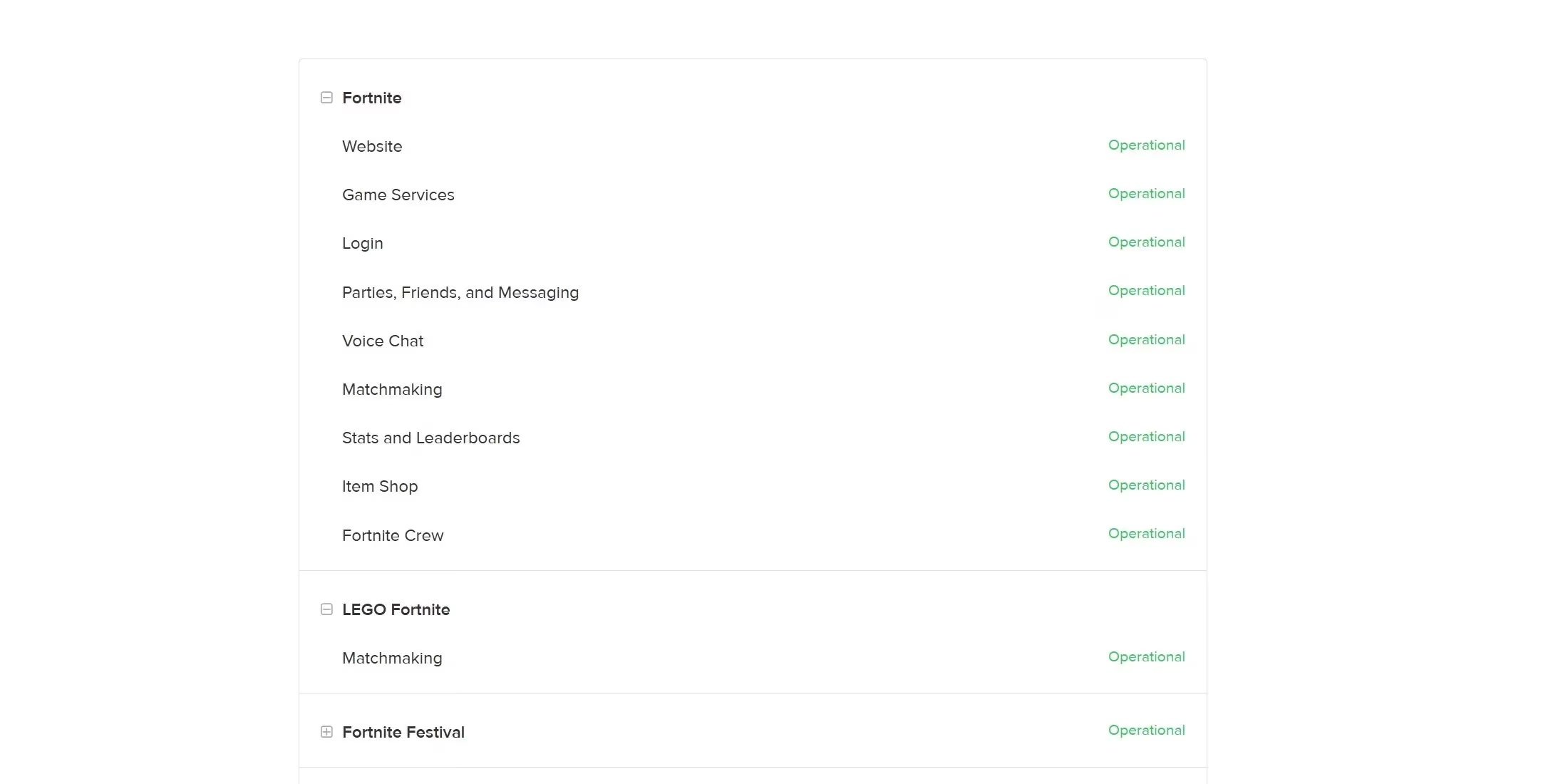
Before you start messing with your own setup, let's make sure it's not Epic Games throwing a party without you. The absolute first stop is the Epic Games Server Status page. If Fortnite's servers are undergoing maintenance (which happens with every major content drop in 2026), this page will tell you.
What to do:
-
Head to the Epic Games Server Status page.
-
Look for 'Fortnite.' If it says anything other than 'Operational,' grab a snack and wait it out—it's not you, it's them.
-
Pro Tip: Also check the official Fortnite Status social media accounts (formerly Twitter/X) for real-time updates on outages or scheduled downtime.
🌍 Step 2: Switch Up Your Playground (Change Matchmaking Region)
If the servers are up, maybe your usual server region is having a moment. Servers in different parts of the world can have independent issues. Switching regions can be a quick bypass.
How to change your matchmaking region in Fortnite (2026):
-
Open Settings in the Fortnite lobby.
-
Go to the 'Game' tab.
-
At the top, find 'Matchmaking Region.'
-
Change it from your default to another region (e.g., from NAE to NAW or EU).
-
Apply settings and try queueing again!
⚠️ Heads up: This might increase your ping (latency), so it's a temporary fix, but it's great for diagnosing if the problem is isolated to one server.
🔄 Step 3: The Classic IT Solution - Turn It Off and On Again
Never underestimate the power of a full restart! Connection glitches can get stuck in your router or game client. A clean slate often works wonders.
The Full Restart Protocol:
-
Power Cycle Your Router/Modem: Unplug it from the wall, wait a full 30 seconds, then plug it back in. Let it boot up completely.
-
Fully Close Fortnite & Launcher:
-
PS5/Xbox: Highlight the game on the home screen, press the Options/Menu button, and select 'Close Game' or 'Quit.'
-
PC: Close the Epic Games Launcher completely via the system tray. Don't just minimize it!
-
-
Restart your console or PC for good measure.
-
Launch everything fresh and try again.
🧹 Step 4: Clear the Digital Cobwebs (Cache & DNS)
Sometimes, corrupted update files or a funky DNS (the internet's address book) can block your connection. Let's clean house.
A. Clear Your Console/PC Cache:
The process varies, but a quick web search for "clear cache [Your Platform] 2026" will give you the latest steps. This often fixes weird post-update bugs.
B. The Nuclear DNS Option (Switch to Google DNS):
If the error persists, changing your DNS to a public one like Google's can bypass issues with your Internet Service Provider's DNS. Here’s how:
| Platform | Steps to Change DNS |
|---|---|
| PlayStation 5/6 | Settings > Network > Set Up Internet Connection > [Your Connection] > Custom > IP (Auto) > DHCP (No) > DNS (Manual) > Primary: 8.8.8.8, Secondary: 8.8.4.4 > MTU (Auto) > Proxy (No) |
| Xbox Series X/S | Settings > General > Network settings > Advanced settings > DNS settings > Manual > Primary: 8.8.8.8, Secondary: 8.8.4.4 |
| Windows PC (2026) | Settings > Network & Internet > [Wi-Fi/Ethernet] > Hardware Properties > DNS server assignment > Edit > Manual > IPv4 > Toggle On > Enter: 8.8.8.8 & 8.8.4.4 |
(For IPv6, use: 2001:4860:4860::8888 and 2001:4860:4860::8844).
⏰ Step 5: The Weird but Crucial Final Check - System Time!
This one sounds odd, but an incorrect system clock can mess with secure connections to game servers. It's a rare but simple fix.
Fix It:
-
Go to your console or PC's main system settings (not Fortnite's).
-
Find 'Date & Time' or 'System Time.'
-
Make sure 'Set Automatically' or 'Synchronize with Internet Time' is ENABLED.
💎 Final Thoughts & Pro Gamer Moves
Following these steps in order should squash the matchmaking error #1. My personal troubleshooting flow looks like this:
-
Check Server Status ❌ → Wait.
-
Server Status ✅ → Change Matchmaking Region.
-
Still Broken? → Perform the Full Restart Protocol (Router + Game).
-
Then try the more involved fixes like DNS.
Remember, in 2026, keeping your game, launcher, and system software updated is more critical than ever to avoid these conflicts. If you've tried everything and it's still broken, it might be time to reach out to your ISP or check for stricter firewall/port settings. But 99% of the time, one of these steps will do the trick!
Now get out there and secure that Victory Royale! 🏆 Let me know in the comments if this guide saved your game night!